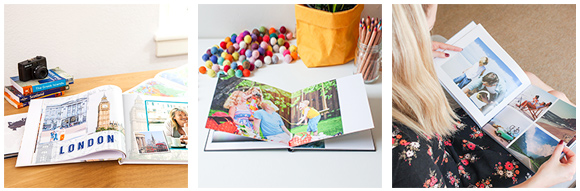
Putting together a great photo book is more than simply dropping four photos to a page on a white background. Careful selection of photos, fonts, backgrounds and layout can make a big difference to the overall impact of your album. By following a few simple tips your story will come to life in a vivid and impactful way.
Of course there is no such thing as the ‘right’ design. What looks great is a very individual thing. Some people prefer stark simplicity with the photo the focus, other people prefer more ornate design seeing the whole page as a canvas on which to paint. The most important thing is you are satisfied with the result.
We would suggest that you keep in mind that with a photo book that you are telling a story. In telling your story you choose to emphasise those items which are most important or compelling. The art is in how you lay your photos out on your photo book page to provide the "right" level of emphasis to the part of the story that you are telling.
In this article we cover three topics:
- Photo selection and cropping
- Layout and template selection
- Text and font selection
Photo selection
There are two important issues in photo selection (1) photo resolution and (2) photo clarity.
Photo resolution
It is perhaps an obvious statement but the higher the resolution of the photo the better will be the final output. The Album Editor will provide a warning where photos fall to a level of 120 Pixels Per Inch (PPI) to a less with a red exclamation mark in the upper right corner of the photo. Higher resolution shots also gives you more freedom with cropping, but more on that later.
Tip two of photo selection is perhaps an obvious one, but lets state the obvious “use your best photos”. If you aren’t sure about the clarity of the shots, don’t use them. The resolution of your computer monitor is a lot less than the printed result, so if it doesn’t look right on screen then you are likely to be disappointed in how it translates into your album. The higher resolution of the printed page will amplify any imperfections in your shot. If you aren’t sure about your photo a good trick is to look at the photo in Picture Manager or your favourite image editor and zoom to 200% and check that the picture is in focus.
See also our article on choosing your best photos.
Cropping for impact
Cropping involves the removal of elements of a photo to improve the impact of a shot or to better frame the subject. Assess each shot in your album, review whether there are elements in each shot which detract from the shot.
In the example below cropping some of the extraneous right foreground out of the shot creates more drama and increases the focus on the penguins.

Layout and template selection
Layout is probably the most individual area of album design. So take these tips as opinion rather than rules:
1. Backgrounds: Experiment with different colour backgrounds. For example a solid black background can create great contrast that can emphasise the photos on your page. Another technique is to use a photo as a background. The Photobook Editor automates this process and sets the transparency of the photo to 50% and sets the image to a full page background to make it easy for you.

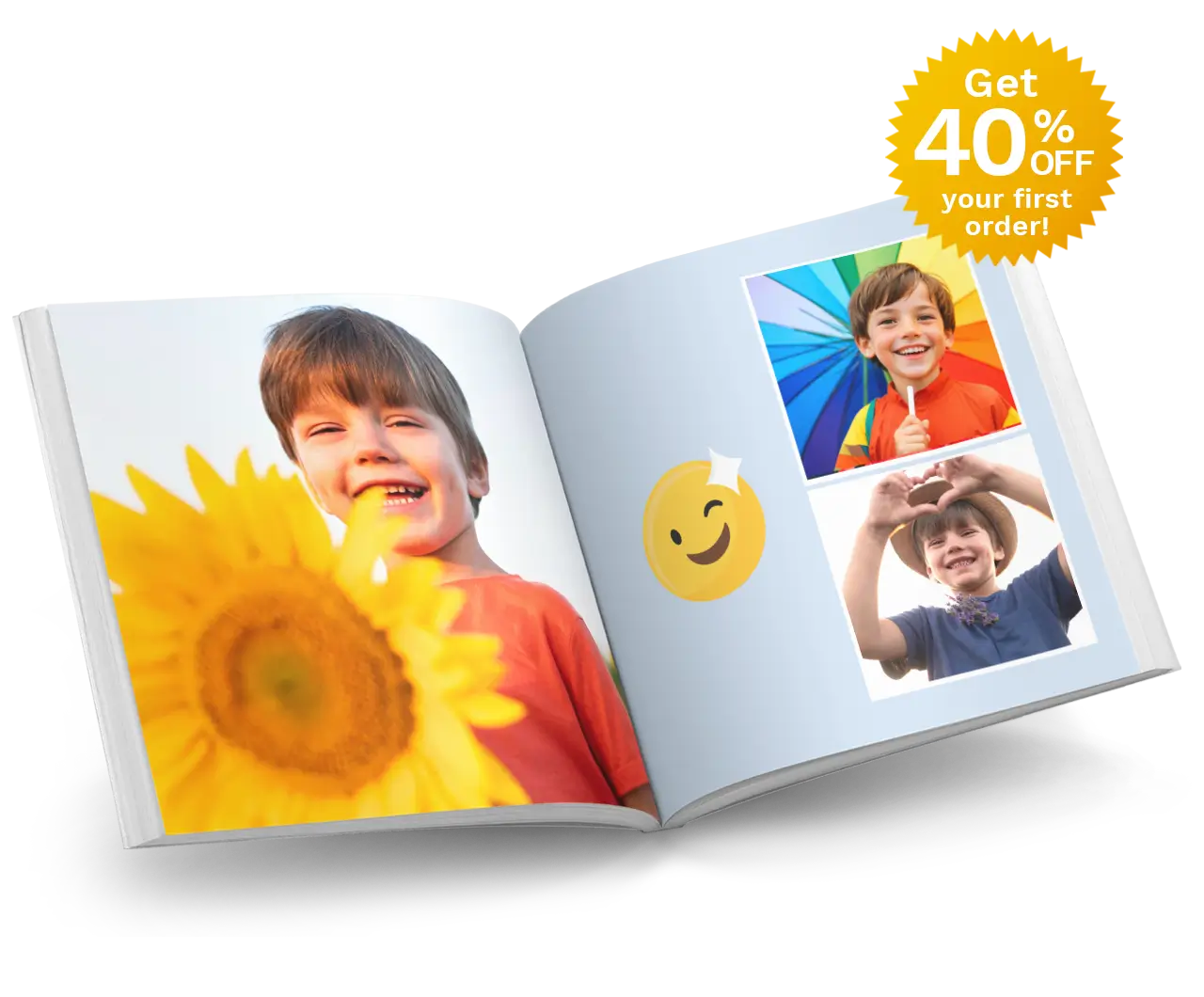
2. Template selection: View each double page spread as a single element that drives your template selection rather than two isolated pages. For example you could use a full page image on the left hand page and perhaps four shots on the right hand page against a solid background colour. The right hand page can add detail and meaning to the shot on the left hand side.
For example during a day sightseeing along the South African coastline you may have a shot that means the most to you but a variety of other shots which individually may not be stunning photos but collectively they add a lot of flavour and context to what you saw on that day. The two pages viewed together as a single element tell a more complete story of that day and make best use of your favourite shot.

In fact one of the key lessons in layout in design that less is often more. You can draw greater attention or achieve greater impact with less content rather than more. Consider these two alternate layouts. Which one makes the greater impact on you, which layout has the most drama?


Use visual effects to draw your eye to the photo
The Photo Book Editor has a range of features that can make a significant difference to how a photo is emphasised on the page by adding small visual techniques.
One of the most effective is to use a drop shadow on photos. This creates a really effective illusion where the photo appears to lift off the page, and brings the photo into the foreground.
Photos with drop shadow

Similarly on a black background, experiment with placing a white border around the photos to quarantine the colour in your photo from the black and draw the eye to the photo.
Photos with white border applied

The opposite technique works just effectively. Try placing a black border around each photo when on a white or light coloured background. This creates separation between the photo and other visual elements on the page.
Text and Font selection
A common question we get is "how big should I make my text on the page". Like many things the answer is - it depends. The important thing to achieve is a strong level of contrast between the text and the other objects on a page that the text is placed against.
For example a paragraph of text on a page with a photo as a background should be treated completely differently to that same paragraph in clear white space.
The more complicated the background the larger and simpler the font should be to provide better contrast and to make it easier to read.
There are two broad categories of fonts. Serifed and non-serifed fonts. Serifed fonts refer to those fonts where the characters have little tails. For example:
Serif
and
Non serifed (Sans-Serif)
Where there is a high complexity background the serifs and the finer aspect of the serifed fonts can fall into the background of the page and so they should be used in less complicated situations.
In the examples below a 14pt Tahoma non-serifed font (Figure A) and a 14pt Times Roman serifed font (Figure B) has been used. The serifed font retains far better strength against the solid black in this instance. It is even more the case when a photo as a background has been used (Figure C).
14pt Tahoma text

14pt Times Roman text

14pt Times Roman text with an image as a background

Design is an entirely subjective area and there are no hard and fast rules. In photobooks there is no good and no bad design, there is simply your story to be told in a way that means the most to you, family and friends. So experiment with some of the ideas contained in this article, explore different techniques...... and bring your story to life.
(Copyright: albumworks 2010, this article is not for reproduction or mirroring, you may link to this page at the URL http://www.albumworks.com.au/articles/how-to-get-the-most-out-of-photobooks-photobook-layout-and-design.html)
| < Prev | Next > |
|---|