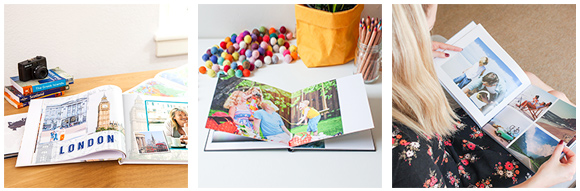
The all new Timeline Theme is now available for use in every Photobook. The Timeline Theme is an elegant way to tell your story by capturing a series of moments on your own custom Timeline that spans the pages of your entire Photobook!
Section One: Updating your editor
Follow these simple steps to download the new Timeline Theme - for free!
1. Open the albumworks editor.
2. You should see a dialogue box appear saying 'Auto Update has detected new items to download' (below) click the 'Yes' button and follow the next step. If this dialogue box doesn't appear you may already have updated your Editor so proceed straight to Section Two: Creating your Timeline Photobook.

3. Tick the 'Application Data' checkbox in the 'Auto Update' dialogue then click 'Install' (below). This will ensure you have the latest updates to your Editor first (you will be asked to restart your Editor - follow the prompts).

4. Your Editor should restart again then automatically search for updates. When the 'Auto Update' dialog box opens, this time tick the 'Products' checkbox in the top left. This will automatically select the new Timeline Theme checkbox (as well as any other product updates you require). Press the 'Install' button. The software will now automatically download the required updates. Press the 'Finish' button when prompted.

Section Two: Creating your Timeline Photobook
1. Start a new project by clicking 'Create a New Project'.

2. Select 'SD & HD Photobooks - V3 Themes'.

3. Select 'SD & HD Photobooks: Timeline Theme' and click 'Next'.

4. Select the Size and Orientation of your desired Photobook and click 'Next'.

5. Should you desire at this stage, you can select a folder on your computer that contains the photos you wish to include in your Photobook. Do so, or, just click 'Next'.

6. Name your project and press. 'Create' to get started!

7. Dragging and Dropping Photos. From here, you can drag and drop photos into the pre-designed Timeline Theme photo boxes (just as you would in any other theme).

8. Sample/Default Text. Please note, ALL sample text that appear in 'Milestone/Caption' Boxes or 'Quote' Boxes throughout the Timeline Theme WILL PRINT. You *must* either EDIT or DELETE each sample text box - or the default sample text will appear in your final, printed book.

9. Swapping/Adding Page Styles. Also note, Timeline Page Styles, found in the 'Page Styles' slider at the bottom, have been designed and labelled as 'Left' and 'Right'. To keep your Timeline consistent, when selecting different Page Styles to suit your story flow, be sure to drag and drop 'Left' labelled Page Styles on left pages and 'Right' labelled Page Styles on right pages.


10. Adding more Milestones. From time to time (pun intended!) you may want to add more milestones than is currently in the Theme. To do this you simply need to insert a new 'Milestone' Scrapbook Item:
- i) Click on the 'Scrapbook' tab on the bottom slider.
- ii) Scroll to the far right to see the new Milestone Scrapbook Items.
- iii) Select the appropriate Milestone Scrapbook Item. Note that they have been designed for either Left Pages (marked 'Left') or Right Pages (marked 'Right') AND they have been designed with different font sizes for Small, Medium or Large books. Choose the appropriate Milestone Scrapbook Item for your needs then drag and drop it into your Photobook.
- iv) Align the Milestone Scrapbook Item with your Timeline (the Milestone will be a 'group' object consisting of a title and caption and 'line').
- v) Edit the Milestone and Caption text with your desired text.
- vi) Hide the 'line'. Right Click on the 'line' object. A context menu should appear. Click on 'Arrange' -> 'Send to Back'. The top of the line should now be hidden behind the thick black horizontal TImeline (and hence be consistent with the rest of the Milestone in your Timeline Photobook).
- vii) You're done! Repeat the above steps as necessary for every Milestone you wish to add.


We wish you all the best telling your story with our new Timeline Theme!