How to add our Father's Day widgets and layouts.
AUGUST 10TH, 2014

Want to make a really original and fun card or gift for Dad this Father's Day? Here's how to apply our brand new Father's Day card layouts, and widgets.
HOW TO ADD A CARD LAYOUT
1. Select your card size from the Father's Day special offers page.
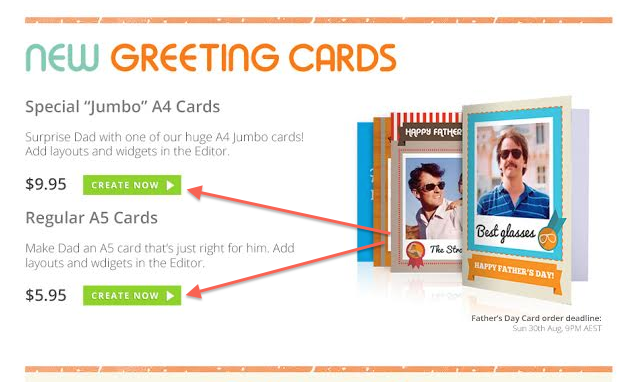
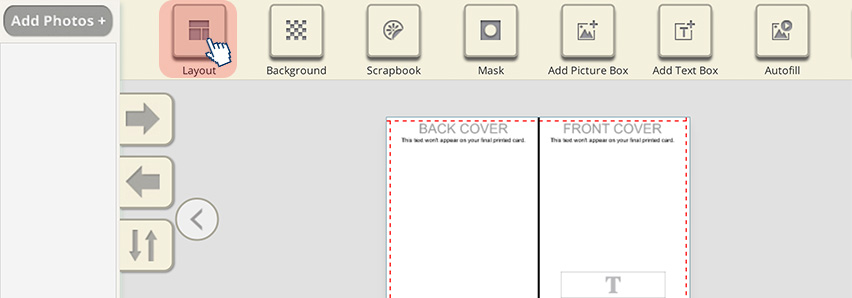
2. Once inside the Editor, choose layout for your card. First select Layout in the top toolbar.
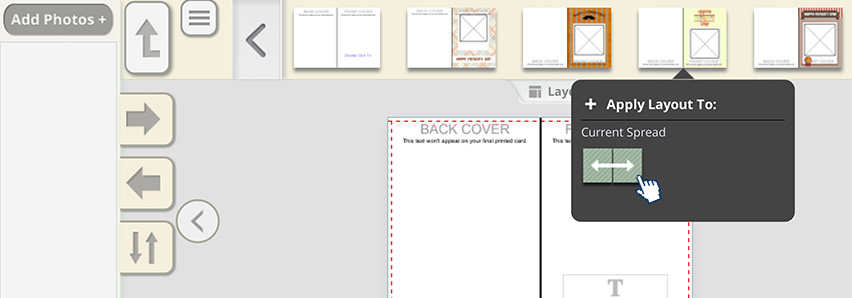
3. Then click "Apply Layout to Current Spread", or drag the layout into the template in the centre of the page.
4. Time to add your photo! Simply select Add Photos in the side toolbar.
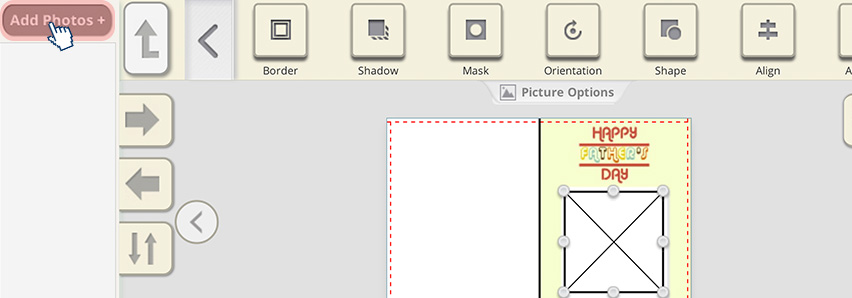
5. Choose to Upload your images.
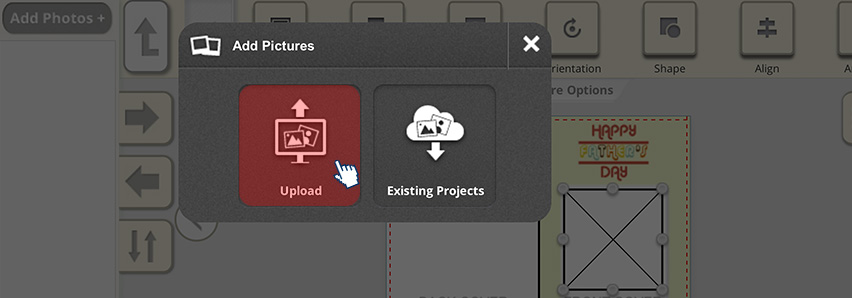
6. Your image(s) will appear in the side toolbar. Only upload the minimum amount of photos at a time, to ensure the Editor loads your photos quickly.
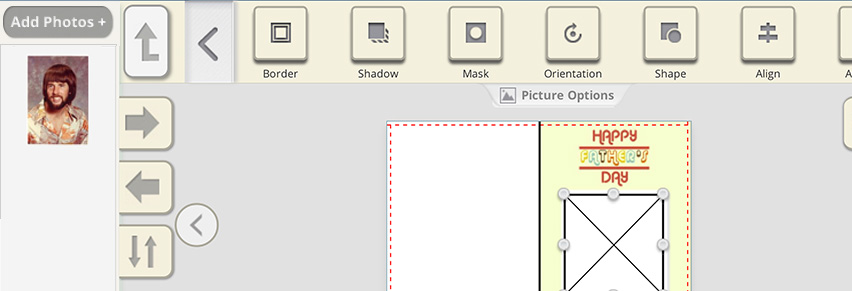
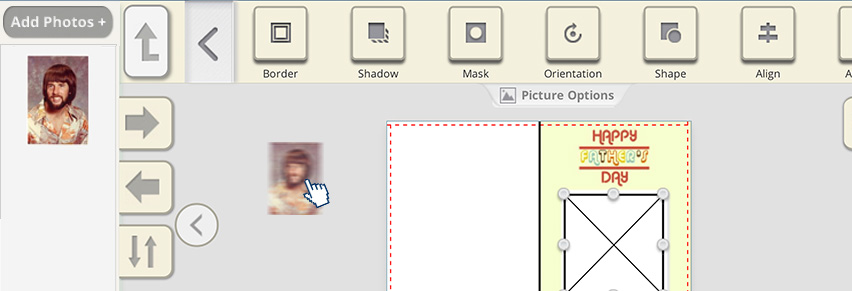
7. Drag your photo into the Card Layout. You can resize or crop the image by double clicking on the image and using the crop tool.
HOW TO ADD WIDGETS TO YOUR CARD, POSTER, CANVAS or HD PHOTO FLIP
1. Select your product from the Father's Day special offers page.
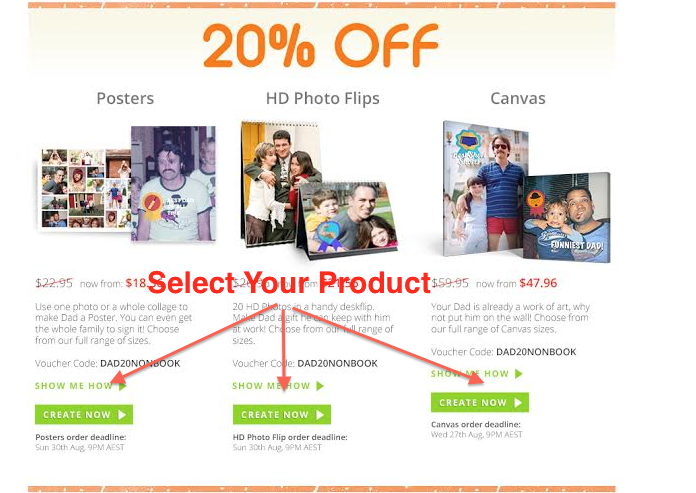
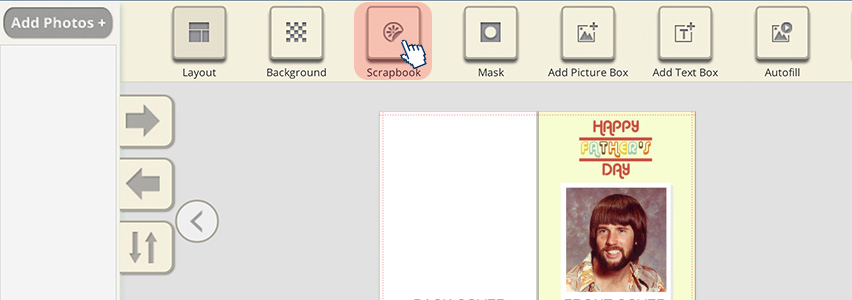
2. Once you have added your photos (see instructions above) add a new Picture Box and then select Scrapbook from the top toolbar in the Editor.
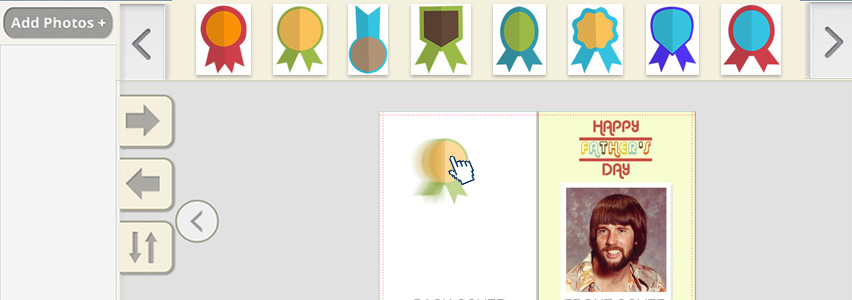
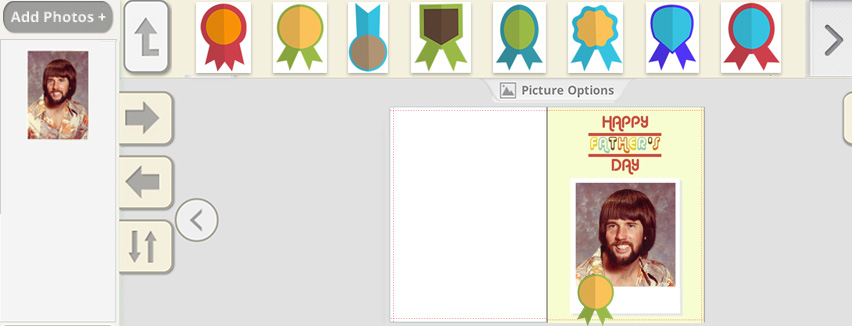
3. When you click on Scrapbook, all the Father's Day widgets will appear. You can scoll through them using the arrows on each side. Once you find the perfect widget to add to the photo of your Dad, you simply drag it onto the new Picture Box. You can resize the widget by adjusting the size of the Picture Box. You can also modify the size by double clicking on the widget and opening our cropping/resizing tool. You can add more than one widget by adding extra Picture Boxes and dragging more widgets onto them. For inspiration check out our Gallery on the Father's Day special offer page.
HOW TO ADD TEXT TO YOUR FATHER'S DAY CARD OR GIFT
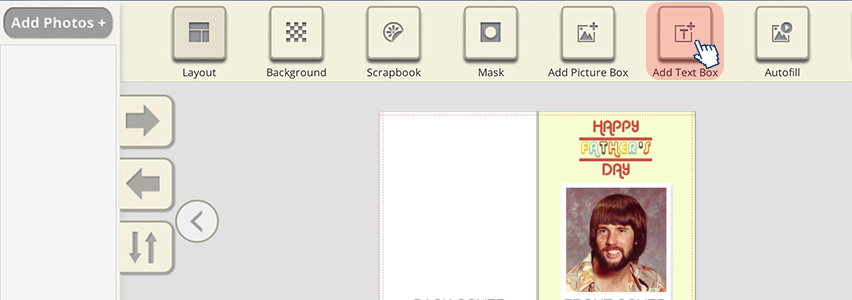
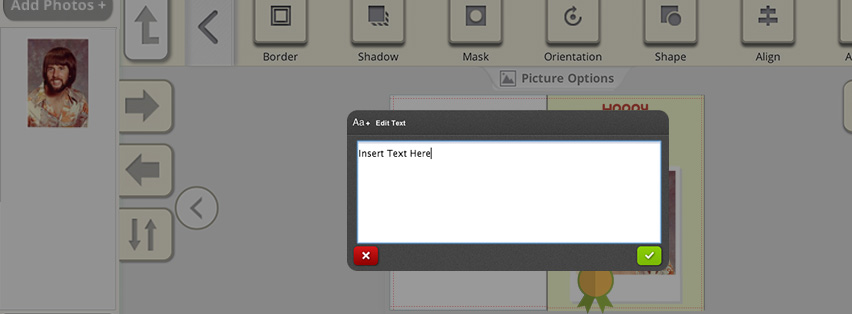
1. To add text to your card simply click Add Text Box in the top toolbar. You type in the text you want to add, click the green tick and it will drop your text on the page. You can then move it around by dragging it with your mouse.
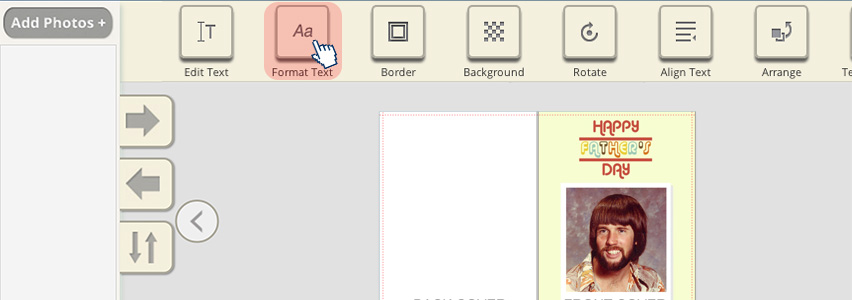
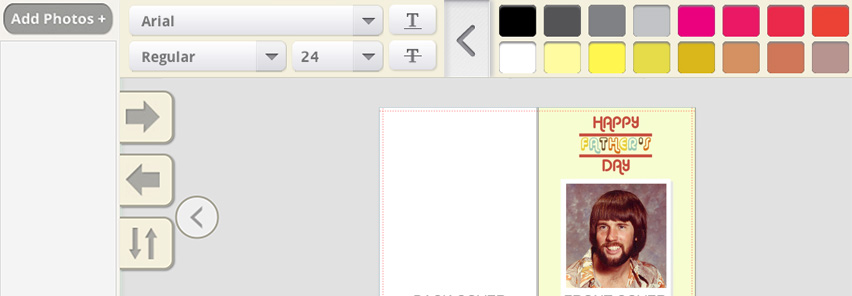
2. To change your font or font size your text, click on Format Text in the top toolbar. You can then select from a range of font options.
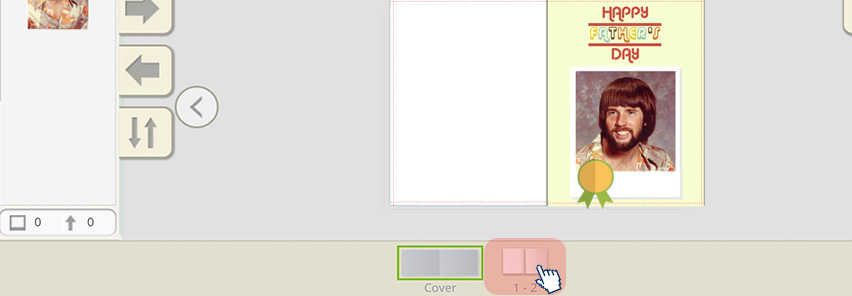
3. To write or add photos to the inside of you card, click on the "1-2" box at the bottom of the Editor window. This will show you inside of your card, and allow you to add whatever you like using the steps we've already discussed. You can go back to the Cover by clicking "Cover".
4. Your card or gift is now ready to order. Simply click on the Shopping Cart and proceed to the Checkout. If you are buying a Poster, Canvas or HD Photo Flip you can add your Voucher Code (DADNONBOOK) here.
And that's it! We hope you enjoy making your special card or gift for Dad!
If you have any trouble, don't hesitate to contact our Customer Service on 1300 553 448.